ScholarDesk

ScholarDesk/Features/Review and payment

From the invoice to the payment record

One page holds everything needed to decide: the amount, the invoice, the account to pay, the student's report and the notes of the desk.

One click, no account. Open the coordinator desk or a student file; the data is fictional and nothing you change is kept.

Review and paymentscholardesk.techma.ai
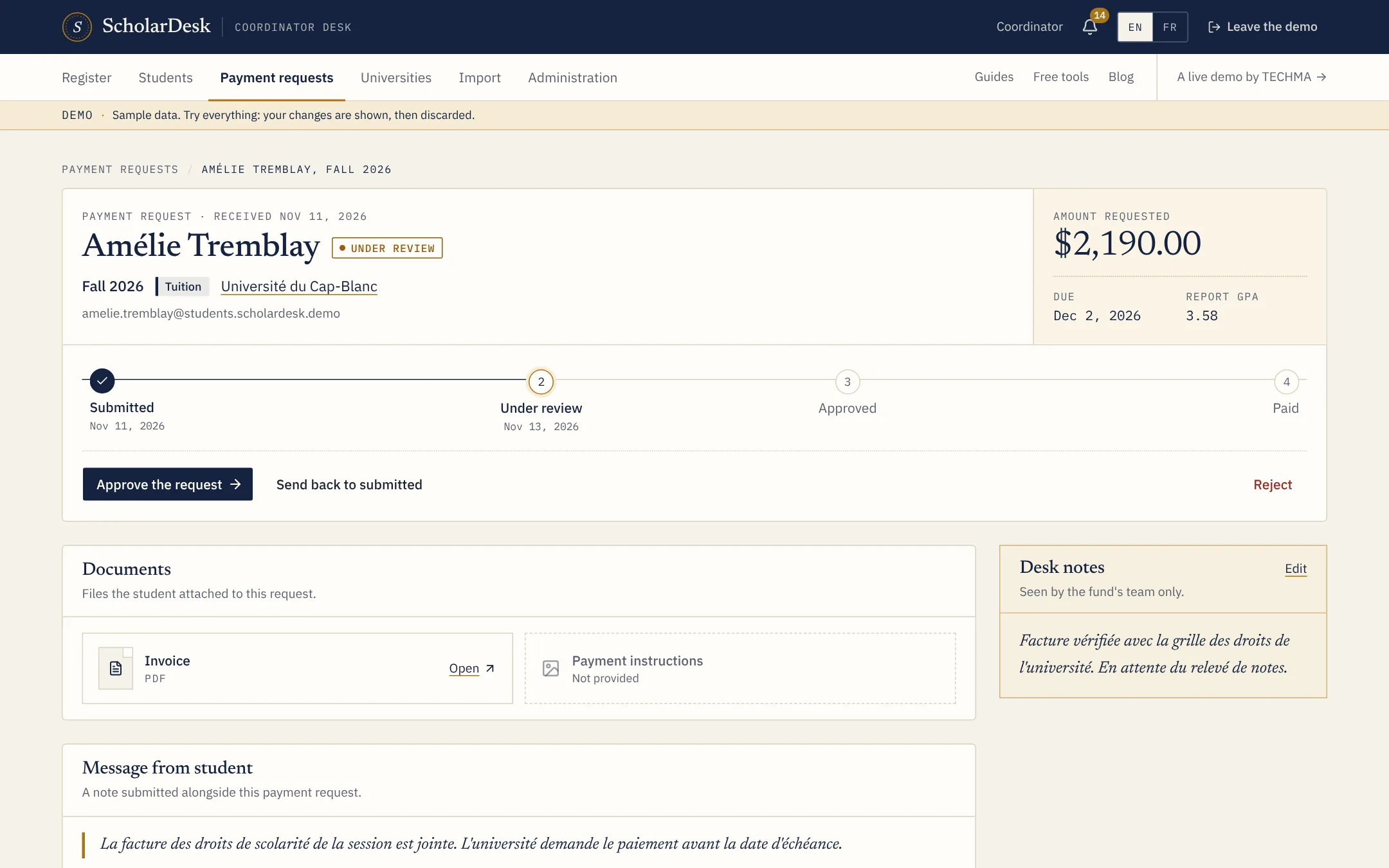
A payment request under review in ScholarDesk with the approve and refuse actions

Everything to decide, on one sheet

  • The request. Type, semester, amount, due date and the student's message.
  • The documents. The invoice and any payment instructions, opened in place.
  • Pay to. The bank, the account holder and the account number given with the request.
  • The semester report. Average, credits, transcript, wellbeing and reflections.
  • Desk notes. Notes that only the fund's team can see.

Four steps, and a way back

A request moves from sent to in review, approved and paid. The coordinator can also send an approved request back to review, or refuse it with a reason the student will read.

Each step is dated, and the student sees the same steps on their side.

The payment is recorded, not made

ScholarDesk does not move money. The fund pays through its bank, then marks the request as paid. That creates a payment record with the amount, the date and an internal note, such as the transfer reference.

Past payments can also be brought in from a spreadsheet, matched by request number or by student and semester.

Terms used on this page

SemesterSemester reportTranscript

Questions

Asked before the first call

Can two people approve a request?

In the demo, any coordinator can approve. A second approver or a committee step is a common addition in a custom version.

Does the student see the desk notes?

No. Desk notes and payment notes stay with the fund's team. The student sees the status, the dates and the reason of a refusal.

Live demo

Judge it on what it does.

ScholarDesk is a working application, not a mock-up. Open the coordinator desk, approve a request, record a payment, then switch to a student file and send one yourself.